WinOLS Automated Bot Project
Imagine a world where you never have to manually map out a Bosch EDC17 or continental SID208 by hand at 2 AM ever again.
We’ve all been there: staring down endless rows of raw hexadecimal code, hunting for that one missing torque limiter in a sea of 2D lines, or manually dragging and dropping solutions for the hundredth time. WinOLS is the ultimate book editor for our cars, but let’s be honest—doing it all manually doesn’t scale if you want to grow your business or free up your time.
That is why I am building something that changes the game: an automated, self-hosted WinOLS Bot designed to ingest original reads, match them against a local .ols database, patch the maps (Stage 1, DPF/EGR deletes, VMAX), fix the checksums, and prepare a ready-to-review draft file in under 60 seconds—24/7.
But I don’t want to build this in a vacuum. I am laying down the foundational framework, APIs, and logic, but to make this the ultimate community-driven automation layer, I need your brains . Whether you are a python developer, an API wizard, a reverse-engineering nerd, or a master tuner who knows the exact keyword/exclude rules needed to perfectly match project variants—your input will shape this project.
Below is the blueprint of what I’ve built so far, how the relay mechanism works, and exactly where we need to team up to make this bot unstoppable. Let’s automate the boring stuff so we can focus on true custom calibration.
1. The Architecture: "The Watched Folder"
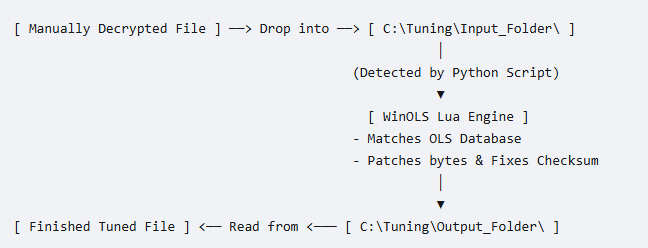
Instead of dragging files directly into the WinOLS software window (which is hard for code to detect), you drag and drop your decrypted files into a specific Input Folder on your desktop.
2. How to Build It (Step-by-Step)
Step 1: The Local Watchdog (Python or Go)
You write a small background script running on your PC that watches your input folder.
- Use a library like
watchdog in Python. - The moment a new
.bin or .ori file is dropped into C:\Tuning\Input_Folder\ , the script wakes up. - It renames the file to something clean (e.g.,
current_job.bin ) and launches WinOLS via the command line, passing a command to trigger your internal WinOLS Lua script.
Step 2: The WinOLS Internal Lua Script
This is the brain of the operation. You write a script using WinOLS’s native Lua environment. Because it runs natively inside WinOLS, it can manipulate projects instantly.
- Import: The script automatically imports
current_job.bin as a new project. - Identify: It reads the hardware and software numbers directly from the file’s text/hex properties.
- Search & Match: It commands WinOLS to search through your local
.ols project database to find a matching master file with the same software numbers. - Apply Patch: It copies the modified map data (difference bytes) from your master file and pastes them onto the newly imported project.
- Checksum & Export: It triggers WinOLS’s automatic checksum block correction, exports the finalized file into
C:\Tuning\Output_Folder\Tuned_File.bin , and closes the project.
3. The Trade-offs of This Approach
| Pros | Cons |
|---|
| No Server Costs: Zero web infrastructure, APIs, or databases to build or maintain. | No Tuning Options: Because you are just dragging a file, the bot doesn’t know if the customer wanted Stage 1 , DPF Off , or both unless you encode that into the filename (e.g., saving it as file_STAGE1_DPFOFF.bin and having your script parse the name). |
| Bypasses Encryption Pain: You don’t have to code complex API integrations for Alientech or Magic Motorsport tools. | Tethered to the PC: You still have to sit at your computer to handle the intake and outtake of the files. |
| Perfect Safety: Your database files and maps never touch a network link. | Synchronous: You can only drag and process one file at a time; otherwise, WinOLS might conflict with itself. |
Prerequisites
First, install the Python file monitoring library: (Windows run CMD)
To get this automation system running on Windows, you will need to set up Python, install the watchdog library, and configure your directories.
Here are the step-by-step instructions to get everything installed and running on Windows:
Step 1: Install Python on Windows
- Go to the official Python website and download the latest installer for Windows (e.g., Python 3.11 or 3.12).
- Run the downloaded installer.
- Crucial: Check the box at the bottom that says “Add python.exe to PATH” before clicking Install Now . If you miss this step, your command prompt won’t recognize Python commands.
- Once completed, close the installer.
Step 2: Install the Watchdog Library
- Open the Windows Command Prompt (press the
Win key, type cmd , and hit Enter). - Type or paste the following command and press Enter:
- Wait for the terminal to show a message like Successfully installed watchdog-x.x.x .
Step 3: Create the Folders
Create the necessary folder structure on your computer. You can do this manually in Windows File Explorer or paste these commands into your Command Prompt:
mkdir C:\Tuning\Input_Folder
mkdir C:\Tuning\WinOLS_Staging
mkdir C:\Tuning\Output_Folder

Step 4: Save and Run the Python Script
- Open Notepad (or any text editor) and copy the Python script provided in the earlier response.
- Save the file inside
C:\Tuning\ and name it folder_watcher.py (make sure it doesn’t end in .txt ). - To run it, open your Command Prompt and type:
python C:\Tuning\folder_watcher.py
- You will see a terminal message saying
🤖 WINOLS HYBRID BOT: STANDING BY... . Keep this window open.
Step 5: Activate the Script in WinOLS
- Open your WinOLS software.
- Ensure you have the OLS530 (Lua Scripting) plugin installed and licensed via EVC.
- Open the Lua script editor context inside WinOLS, paste the Lua script provided earlier, and save it as
bot_daemon.lua . - Run the Lua script within WinOLS so it begins monitoring the staging folder.
The Python script (tested and working)
folder_watcher
How the Handshake Works Under the Hood
- The Drop: You manually decrypt a file and drag it into
C:\Tuning\Input_Folder . - The Python Trap: The script instantly catches the file, waits 1 second to ensure it is fully written to the disk, and moves it to
C:\Tuning\WinOLS_Staging\current_job.bin . - The WinOLS Consumption: Inside your open WinOLS software, your active background Lua script (which you have programmed to loop or use
ReadDirectory() on C:\Tuning\WinOLS_Staging ) notices current_job.bin . - The Automation: The Lua script imports it, finds the matching
.ols database map, patches it, calculates the checksums, and exports it to your outputs. - The Cleanup: Crucially, your Lua script must execute
os.remove("C:\\Tuning\\WinOLS_Staging\\current_job.bin") at the very end of its execution block. This leaves the folder empty, signaling to Python that WinOLS is ready for the next file.
To Stop the Python Script
Go to the Windows Command Prompt window where your Python script is running (the one displaying 🤖 WINOLS HYBRID BOT: STANDING BY... ).
- Press
Ctrl + C on your keyboard. - The script will instantly stop tracking your folders and display
[🛑 STOPPING] Folder watcher shutting down safely. - You can now safely close the Command Prompt window.
Now the bit i struggle on!
WinOLS Internal Automation Script (bot_daemon.lua )
- Native Scope Integration: Methods like
projectFindSimilarProjectsSql() , projectImportChanges() , and projectApplyChecksums() belong entirely to EVC’s Lua internal plugin framework. They target native operations that avoid manipulating menus or reading windows. - Project Reference Execution: WinOLS relies heavily on identifying reference indexes. When you run
projectImportChanges(master_id) , WinOLS looks up the specified database file path locally, computes the exact geometric difference maps between its original read and its tuned state, and scales/pastes those byte-offsets directly onto your newly opened file. - The Error Fallback: If
matched_project_id == 0 , the script bypasses modifying anything, safely purges current_job.bin from staging, and resets. Your file remains untuned, signaling to you that manual map building is required for that specific software version.
At a high level, this Lua script acts as an automated assembly line worker inside WinOLS. It stands by, waits for a file to appear, extracts its identification data, copies your proven tuning maps onto it, fixes the checksums, and spits out a finished product.
Here is the exact step-by-step breakdown of what the script does under the hood:
1. The Watch Loop (Standing By)
- The script runs an infinite loop that checks your staging folder (
C:\Tuning\WinOLS_Staging\ ) every 1 second. - It is looking for the exact file name
current_job.bin (which your Python script creates when you drop a file in). - It sleeps between checks so it doesn’t max out your computer’s CPU.
2. File Ingestion & ECU Identification
- The moment it detects
current_job.bin , it automatically imports that binary file into WinOLS as a fresh project. - It programmatically reads the file’s internal metadata—specifically digging out the ECU Hardware Number and ECU Software Number .
3. Database Matchmaking
- It uses WinOLS’s internal database engine (
projectFindSimilarProjectsSql() ) to search through all of your local saved .ols files. - It loops through the results to find an existing project file that matches the exact same Software Number as the file you just dropped in. This ensures it only copies maps meant for that specific engine control unit.
4. Cloning the Tune (The Core Step)
- Once it finds your matching master project file in your database, it uses a native WinOLS command (
projectImportChanges() ). - This command calculates the exact difference bytes (the maps you changed, such as ignition, boost, or rail pressure) between your master’s stock version and its tuned version.
- It then pastes those exact map modifications onto the new customer file.
5. Checksum Correction & Export
- Because changing bytes breaks the file’s internal security matrix, the script triggers WinOLS’s native checksum blocks (
projectApplyChecksums() ) to recalculate and fix the file so it is safe to flash. - It appends a timestamp and the software number to create a unique filename (e.g.,
Tuned_1037350123_20261103.bin ). - It exports this finalized file into your
Output_Folder .
6. Automated Cleanup
- It closes the newly created project within WinOLS so your software doesn’t get cluttered with hundreds of open projects.
- Finally, it deletes
current_job.bin from the staging folder . Deleting this file tells your Python script that WinOLS has successfully finished its job and is ready for you to drag and drop the next file.
The Lua script here bot_daemon install into your Lua directory and run it direct from WinOLS Window>Lua
Comment/help below